Android smartphones have evolved significantly in recent years, offering users unparalleled convenience and connectivity. Among the many innovations that have improved the user experience, call notification features stand out as a vital component. These features ensure users never miss an important call, even when their device is in silent mode, locked, or when apps are running in the foreground.
Call notifications on Android devices have become more customizable and intelligent, allowing users to tailor alerts based on personal preferences. Whether through visual pop-ups, floating notifications, or wearable alerts, Android ensures that users stay connected at all times. These functions are particularly useful in busy, multitasking scenarios and contribute to better accessibility for all users, including those with hearing impairments.
The integration of call notification systems with smart devices, apps, and cloud-based platforms reflects how Android has turned communication into a seamless, automated experience. These improvements are not just user-focused but are crucial for enterprises and professionals who rely on timely interactions.
Android Call Notification Systems
Android call notifications are alert systems that inform users of incoming calls even when they are using other applications or when their phone is idle. These alerts can appear as banners, pop-ups, and heads-up notifications or even be delivered via smartwatches and Bluetooth devices. Such integration allows the user to take immediate action—answer, reject, or mute a call—without disrupting their current activity.
Notifications have grown beyond just sound and vibration; with Android’s accessibility and personalization options, users can choose how they want their devices to notify them. This is especially useful in professional environments where subtlety is needed or for users with special accessibility needs.
How Android Handles Call Notifications on Different Devices
Android’s open-source nature means it is used by multiple manufacturers, each with its own customization of the call notification system. While Samsung, Google Pixel, and Xiaomi might present notifications differently, the underlying mechanisms remain similar. Most modern Android devices support customizable call notifications that appear over any app, even in Do Not Disturb mode.
Read More : How to Auto Reply on Your WhatsApp: App Guide !
Users can adjust these settings in the Sound & Notification section of their device settings. Here, they can manage preferences like call flash alerts, screen wake-up on calls, and notification pop-ups. For tablets and smart TVs running Android, call notifications can be synced via Google accounts or third-party applications.
Pop-Up Call Notifications and Floating Windows
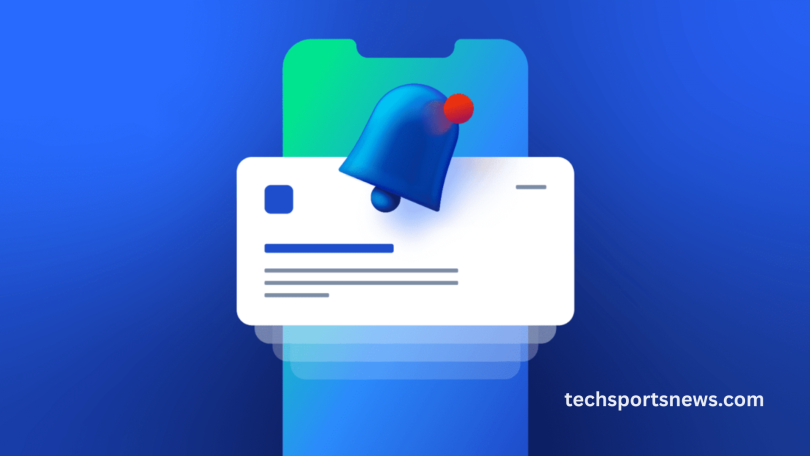
One of the most useful innovations in Android is the floating call notification or pop-up alert. These are small windows that appear at the top of the screen when a call is incoming, allowing users to continue using their phones without being interrupted.
This feature is particularly beneficial for gamers, content creators, or professionals using multitasking apps. Floating windows offer essential controls accept, decline, or reply with a message without closing the current task. Custom apps like Truecaller, Drupe, and CallApp further enhance this experience with visually rich interfaces and advanced features.
Call Notifications on the Lock Screen and Always-On Display
Android users can receive call alerts even when the screen is locked, thanks to the integration of lock screen notifications. These can be toggled in the Lock Screen Notifications settings, allowing users to preview calls with privacy options—show all content, hide sensitive data, or don’t show at all.
On devices with Always-On Displays (AOD), like Samsung Galaxy or OnePlus models, call notifications show up on the screen without fully waking the device. This preserves battery while ensuring that no call goes unnoticed. Users can combine this with LED notifications and edge lighting for added visibility.
Customizing Ringtones, Vibrations, and Notification Channels
Android allows deep customization of call alerts through unique ringtones, vibration patterns, and even contact-specific alerts. Users can set different tones for family, work, or emergency contacts, ensuring they recognize calls even without looking at the screen.
With Android Oreo and above, Notification Channels give users granular control. Users can set the importance of call notifications, allowing them to bypass Do Not Disturb settings or appear silently. Vibration settings can be modified using third-party apps or built-in sound settings, improving the user’s ability to receive calls discreetly.
Smartwatch and Wearable Call Notification Syncing
For users who use Android-compatible smartwatches such as Samsung Galaxy Watch, Fossil, or Mobvoi TicWatch, call notifications are instantly pushed to the wearable device. This ensures calls are never missed, even when the phone is out of reach or in a pocket.
With apps like Wear OS, notifications are mirrored in real-time. Users can accept or reject calls directly from their watch. This functionality is ideal for fitness enthusiasts, drivers, and office workers who cannot always check their phones. Additionally, some wearables provide vibration and visual alerts through customizable interfaces.
Android Call Notification and App Permissions
To function correctly, call notification features require permissions, including Phone, Contacts, and Notification Access. These permissions ensure apps can read incoming call data and display alerts. Users can grant or revoke these permissions in the App Settings.
Improperly configured permissions can cause call notifications to fail, especially when using third-party dialers or battery optimization settings. To ensure uninterrupted call alerts, users should whitelist important apps and disable battery restrictions for them in the Battery Optimization section of device settings.
Do Not Disturb Mode and Priority Call Notifications
Android’s Do Not Disturb (DND) mode allows users to silence all notifications, but with the option to allow exceptions. Users can create rules that allow calls from favorite contacts, repeat callers, or calendar events to come through.
This is particularly useful during meetings or nighttime. Settings for DND can be found under Sound & Vibration, and users can customize it to enable priority interruptions. The combination of DND and notification channels ensures that users are only alerted when absolutely necessary.
Third-Party Apps Enhancing Call Notification Experience
Many third-party apps on the Google Play Store provide advanced call notification features beyond the native capabilities of Android. Apps like Full-Screen Caller ID, Call Flash, and Hiya allow users to set animated notifications, full-screen alerts, and real-time caller identification.
Some apps integrate with cloud storage, contacts, and email for a seamless communication workflow. These tools are especially useful for users looking to enhance the visual appeal or functionality of their call alerts. Always ensure apps are from trusted developers and check permissions before installation.
Notification Troubleshooting and Optimization Tips
Call notification issues on Android can be caused by battery optimizers, background restrictions, or disabled permissions. To fix this, users should navigate to Settings > Apps > Special Access > Battery Optimization and exclude dialer apps.
Additionally, enabling unrestricted data usage for essential apps ensures notifications are delivered even in power-saving modes. Keeping the system updated and regularly clearing the app cache can also prevent notification delays or failures. Users should restart their phones after any major settings change to ensure stability.
Frequently Asked Questions
How can I enable call notifications on my Android phone?
Go to Settings > Notifications > Phone, then enable all relevant toggles like sound, pop-up, and lock screen visibility.
Why am I not receiving call notifications?
Check if Do Not Disturb is on, ensure app permissions are granted, and exclude your dialer app from battery optimization.
Can I customize call notifications for specific contacts?
Yes, go to Contacts > Select Contact > Set Ringtone, and choose a custom sound or vibration pattern.
How do I get call notifications on my smartwatch?
Pair your watch via Wear OS or Galaxy Wearable, and enable call notifications in the companion app settings.
Can I receive call notifications while using other apps?
Yes, enable Floating Notifications or Pop-up Notifications in your Android system settings.
What should I do if my call screen doesn’t appear?
Go to Apps > Phone > Display Over Other Apps, and ensure permission is granted.
Are there apps that improve Android call notifications?
Yes, apps like Truecaller, Full Screen Caller ID, and CallApp offer enhanced features and customization.
How do I get call alerts on a locked screen?
Navigate to Settings > Lock Screen > Notifications, and set it to show all content or hide sensitive info.
Conclusion
Call notification features on Android make communication more efficient and accessible across devices. From lock screen alerts to wearable syncing, Android ensures users never miss a moment. With extensive customization, third-party enhancements, and ongoing system improvements, Android continues to lead in user-friendly notification management.